Introduction
AperTrace is a native macOS photo library and camera-info watermark app. It reads details such as camera, lens, focal length, aperture, shutter speed, and ISO from a photo, then presents them in a clean layout around the image.
AperTrace supports JPEG, PNG, HEIC, and RAW formats that the installed macOS Core Image RAW decoder can open. You can browse a group of photos, apply a template to one or many images, and export finished files as JPEG, PNG, or HEIC.
System Requirements
- macOS 14 Sonoma or later.
- RAW compatibility depends on the camera formats supported by your current macOS installation.
- AperTrace includes English and Simplified Chinese and follows the app language selected in macOS.
Add Photos
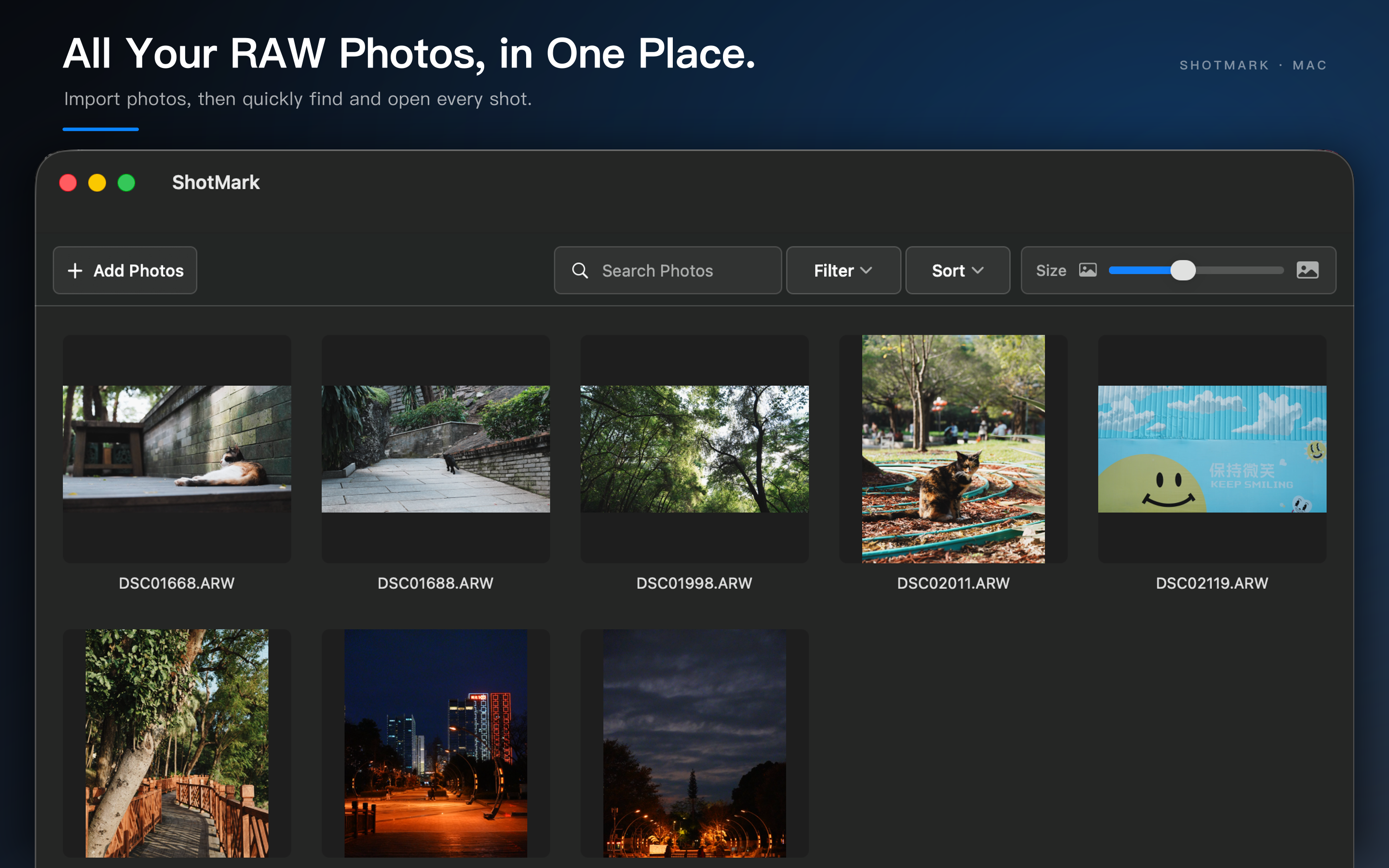
Open AperTrace and click Add Photos, or drag photos directly into the library window.
AperTrace keeps access information for each source file without copying, moving, or modifying the original photo. If the same source file is imported again, you can skip the duplicate, import it anyway, or cancel the import.
The library toolbar helps you manage larger groups of photos:
- Search by filename and by camera or lens information that has already been read.
- Filter by availability, file format, or watermark template.
- Sort by import order, import date, filename, camera, or capture date.
- Adjust thumbnail size without losing your selection.
Preview a Photo and Choose a Watermark
Double-click a photo to open it in a separate preview window. Use Previous and Next, or the arrow keys, to move through the current library results.
AperTrace includes two watermark templates:
Classicadds a clean information bar below the photo.Polaroiduses a print-inspired border with room for the photo details.
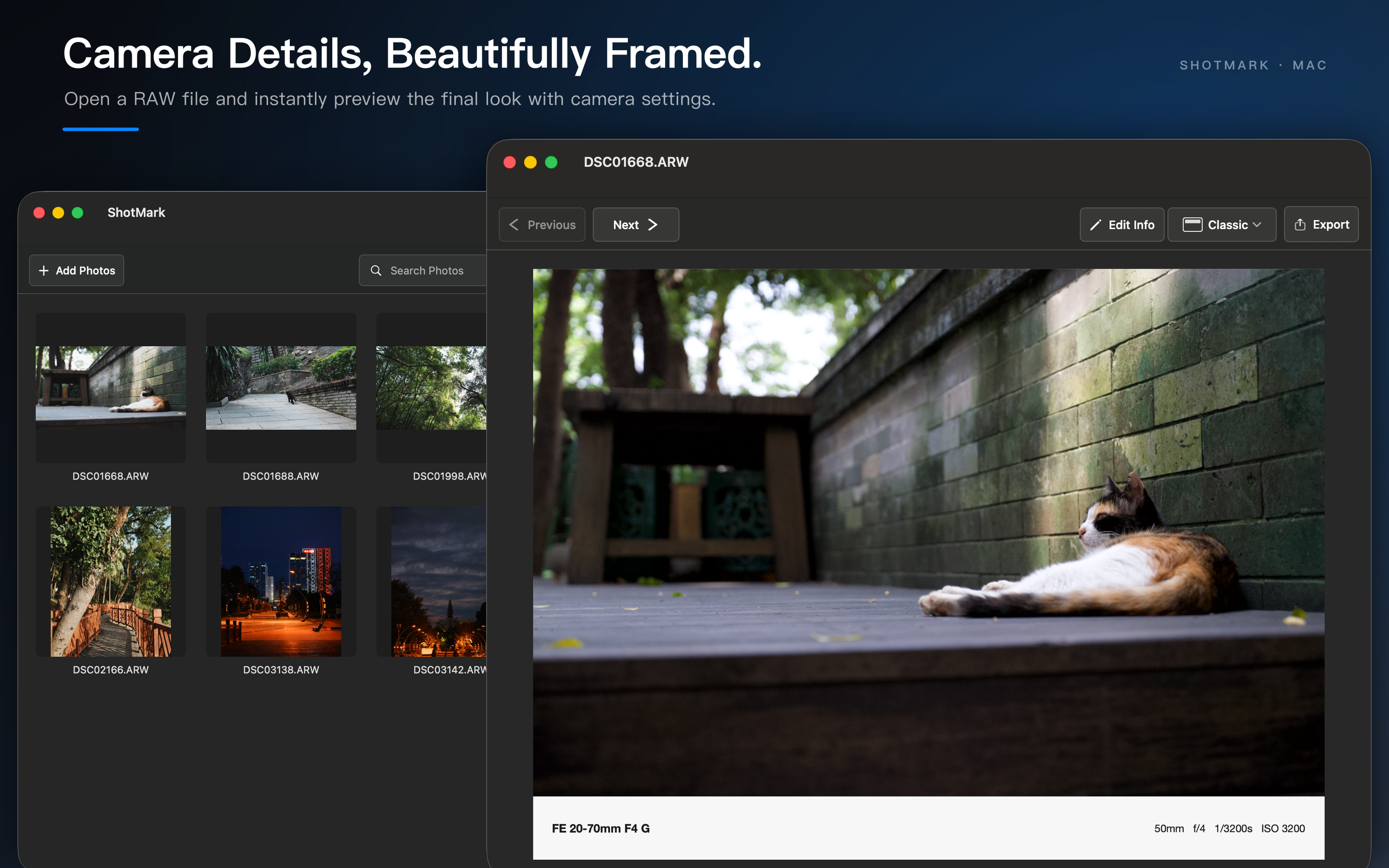
The preview and full-resolution export use the same layout rules, so the composition and text placement you review are preserved in the finished image.
Edit Camera Information
Click Edit Info in the preview window to control:
- Camera
- Lens
- Focal Length
- Aperture
- Shutter
- ISO
Each field has three display modes:
Automaticuses the value detected in the photo.Customlets you enter the text that should appear in the watermark.Hiddenremoves that field from the watermark.
These choices are stored only in the AperTrace library. They are not written back to the photo’s EXIF metadata and do not alter the source file.
Select and Process Multiple Photos
AperTrace follows standard macOS selection behavior:
Command-clickadds or removes one photo from the selection.Shift-clickselects a continuous range.Command-Aselects all photos in the current search and filter results.Escapeclears the selection.
After selecting multiple photos, you can apply either template to the whole selection or start a batch export.
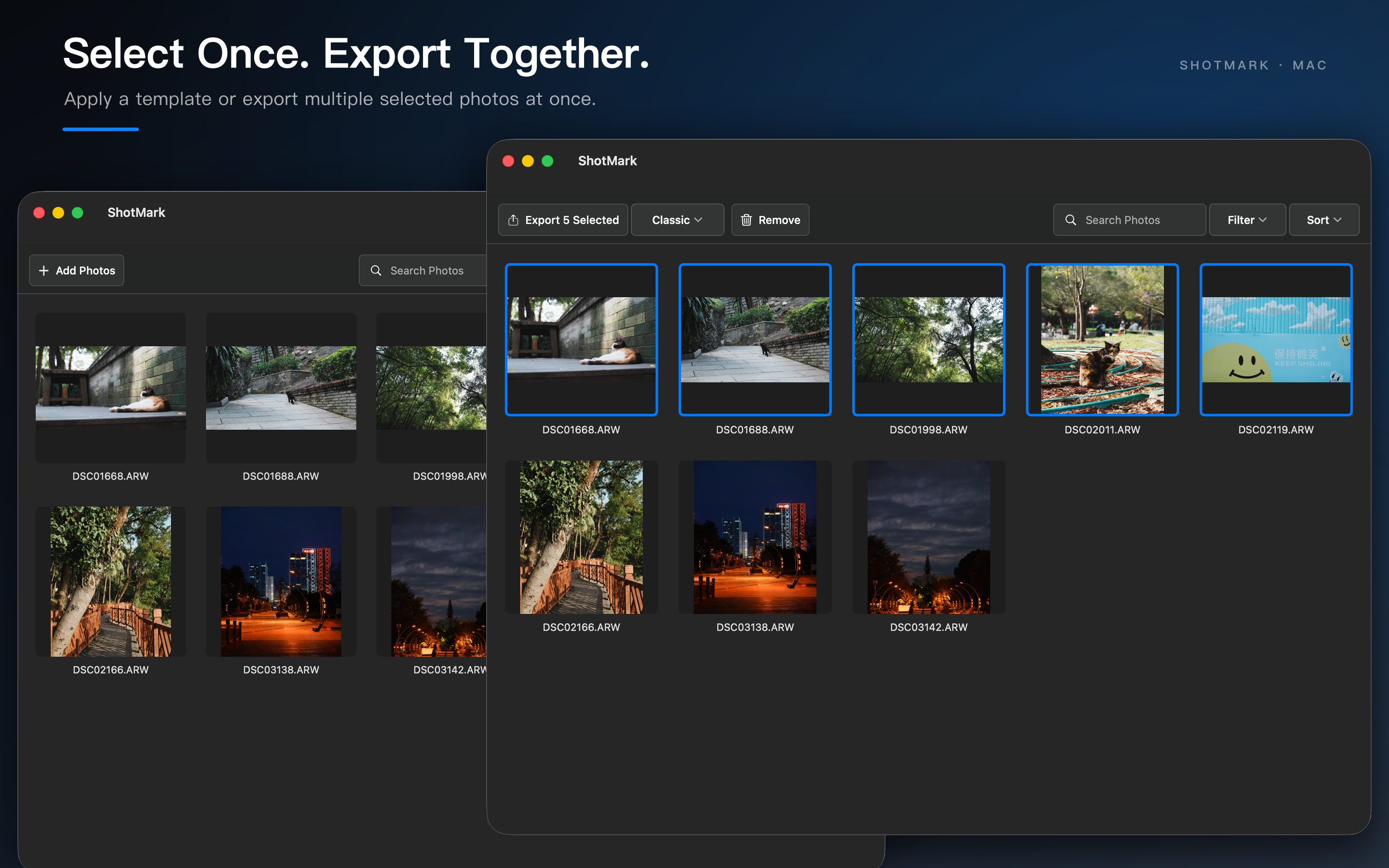
Choosing Remove deletes only the AperTrace library records and thumbnail cache. It does not delete, move, or modify the source photos, and the operation can be undone with Command-Z.
Export Photos
Export One Photo
Click Export in the preview window, then choose JPEG, PNG, or HEIC. JPEG and HEIC include a quality setting, while PNG uses lossless encoding.
Batch Export
Select multiple photos in the library and click Export N Selected:
- Choose a destination folder.
- Choose JPEG, PNG, or HEIC.
- Set the output quality for JPEG or HEIC.
- Start the export and follow its progress.
The default output name is original-name-apertrace.extension. If that name already exists, AperTrace adds -2, -3, and so on instead of overwriting a file.
You can cancel a batch export. Files already completed are kept, and items that have not started are stopped. A failure on one photo does not stop the remaining photos; AperTrace shows a summary when the batch finishes.
Relocate an Unavailable File
Because AperTrace works with the original photo rather than an internal copy, a file may become unavailable after it is moved or renamed, or while an external drive is disconnected.
Right-click the photo and choose Relocate... to reconnect it to the source file. The same menu can reveal an available source in Finder or regenerate a thumbnail when needed.
Privacy and Source-File Safety
- AperTrace does not upload photos and has no cloud-sync feature.
- Original photos are not copied into the AperTrace library.
- Camera-info edits remain in AperTrace’s local index.
- Removing an item from the library does not delete the source photo.
- Export never overwrites an imported source photo.
Q&A
-
Why can’t AperTrace preview a RAW file? RAW support is provided by the Core Image RAW decoder installed with macOS. Update macOS first. If the camera format is still unsupported, convert the photo to a compatible format before importing it.
-
Does editing camera information change the photo’s EXIF metadata? No. Custom and hidden settings affect only AperTrace previews and exports.
-
Does Remove from Library delete the file from my drive? No. It removes only AperTrace’s library record and thumbnail cache.
-
Can batch export overwrite an existing image? No. AperTrace automatically adds a numeric suffix when a filename is already in use.
-
Can I change the watermark template for several photos at once? Yes. Select the photos, open the
Templatemenu, and chooseClassicorPolaroid. -
Why does a photo show “File unavailable” after I move it? AperTrace uses the source file and does not keep a separate photo copy. Choose
Relocate...to reconnect the moved file.
If you report an issue, including your macOS version, photo format, and the exact steps that produced the problem will make troubleshooting much faster.
请保持转载后文章内容的完整,以及文章出处。本人保留所有版权相关权利。